Wednesday, September 11, 2013

Dynamic configation of web content in Liferay theme

Aim: If we want to display single web content across your portal.Please follow below steps.

Step1: change dtd 6.0.0 to 6.1.0 these lines in your theme liferay-look-and-feel.xml

<!DOCTYPE look-and-feel PUBLIC "-//Liferay//DTD Look and Feel 6.1.0//EN" "http://www.liferay.com/dtd/liferay-look-and-feel_6_1_0.dtd">

Then, change the theme like, IF you did not upgrade dtd it will through error 

<theme id="your_themeid" name="your themename">
<settings>
<setting configurable="true" key="header_throughaday" type="text"></setting>
</settings>
</theme>

Step2: Add these lines in any of your vm files like init_custom.vm,portal_normal.vm, Bold letter are your custom variables you can change.

#if ($theme_settings.header_throughaday)
#set ($header_section = $journalContentUtil.getContent($group_id, $theme_settings.header_throughaday, null, "$locale", $theme_display))
#end

Step3: Then added your varibales into your placeholder div

 $header_section

Step4: Then give your article id in look and feel section.


Step5: Write a css in your custom.css for more styles for your content .

If we follow these step we will avoid this problem:

we embed web content in theme level it will change for every page or we need to select that web content for all pages and also we need take care portlet borders,portlet body and all other default css and div.

Thursday, February 28, 2013

AUI Carousel using WebContent with Repeatable Fields in Liferay

AUI Carousel using WebContent Structure/Template
AUI Carousel using WebContent Structure/Template with Repeatable Fields

Step 1 : Create a structure click Lunch editor its open a popup window paste this

<?xml version="1.0"?> <root> <dynamic-element name="image" type="document_library" index-type="" repeatable="true"/> </root>
 
Step 2 : Create a Template click Lunch editor its open a popup window paste this
<div id="carousel_1"> #foreach($img in $image.getSiblings()) <div class="imagediv" style="background: url($img.getData());"></div> #end </div> <script type="text/javascript" charset="utf-8"> AUI().ready('aui-carousel', function(A) { var component = new A.Carousel( { intervalTime: 5, contentBox: '#carousel_1', activeIndex: 'rand', height: 214} ) .render(); }); </script>
.imagediv { width: 100%; height: 214px; display: inline; }

Step 1 : Use this structure and template in web content portlet., You will find the add button if you click the button the filed will repeat one. you could delete this filed as click delete button to delete the filed.

Tuesday, October 16, 2012

Dealing with browser bugs in liferay themes

you have to deal with a browser bug, you can add browser prefix to a style to target a specific browser issue.The following code is from the custom.css file of the Liferay Classic theme:

For all other browser's you see the html tag using your browser's developer tools their it will create the class as per your browser's name use that class. like see example here.

.ie6 #wrapper {
width: 90%;
}
This style is for Internet Explorer 6 only. For a <div> block whose ID is wrapper,
its width is specified as relatively 90%.

.ie7 #wrapper {
width: 90%;
}
This style is for Internet Explorer 7 only.

.ie8 #wrapper {
width: 90%;
}
This style is for Internet Explorer 8 only.

.ie9 #wrapper {
width: 90%;
}
This style is for Internet Explorer 9 only.

.firefox #wrapper {
width: 90%;
}
This style is for Only firefox All version .

.chrome #wrapper {
width: 90%;
}
This style is for Only Google Chrome All version.


Thursday, October 11, 2012

Liferay user avatar image in Liferay themes

If you want to use liferay user avatar image in theme added this line in portal.normal.vm file or any of your velocity micro(vm) files.

<img src="/image/user_male_portrait?img_id=$user.portraitId&amp;" width="30">

Wednesday, October 10, 2012

iPad theme in Liferay Theme 6.1

Liferay 6.1 iPad theme and jQuery tut

Liferay 6.1 iPad theme beta


Liferay 6.1 iPad theme is available for download now. Please let me know your feedback.
Preview Image
ipadliferay6theme
Please feel free to comment or feedback.


Thank's
Original Post http://blog.wasimshaikh.com/2012/10/09/liferay-6-1-ipad-theme-beta/ 

Forget Password URL In Liferay Theme level

Step1: Add these lines in Portal_normal.vm files, where to want like inside your div or table

#set ($forgetpasswordURL = $portletURLFactory.create($request, "58", $page.getPlid(), "RENDER_PHASE"))
            $forgetpasswordURL.setPortletMode("view")
            $forgetpasswordURL.setWindowState("maximized")
            $forgetpasswordURL.setParameter("struts_action", "/login/forgot_password")
            $forgetpasswordURL.setParameter("", "")
                <a href="$forgetpasswordURL">FORGOT PASSWORD</a>

Step2: Write css in custom.css

Create Account URL In Liferay Theme level

Step1: Add these lines in Portal_normal.vm files, where to want like inside your div or table

#set ($CreateAccountURL = $portletURLFactory.create($request, "58", $page.getPlid(), "RENDER_PHASE"))
            $CreateAccountURL.setPortletMode("view")
            $CreateAccountURL.setWindowState("maximized")
            $CreateAccountURL.setParameter("struts_action", "/login/create_account")
            $CreateAccountURL.setParameter("", "")
                <a href="$CreateAccountURL">REGISTER</a><font color="#BBBBBB">|</font>

Step2: Write css to display in custom.css
 

Wednesday, October 3, 2012

Avoid tables for layout in liferay themes

Please try to avoid tables in your code. Its default make a mobile sites and responsive layouts.
  • If you’re using tables for layout then you’re mixing presentation with content, so your bandwidth usage is higher than need be, as for every page your visitors view, they have to download the same presentational data again and again.
  • Redesigns are a lot harder than they need to be. Since tables can only be laid out on screen one way, if you want to change the layout of a table site, you have to change your tables in every single one of your pages. Not a nice job. With a full CSS site, all you need do is change that one CSS file.
  • Tables really don’t help accessibility for viewers with disabilities. Although your layout may look logical displayed on screen, the order in which it will be read by, say, screen reading software, may be very different. Many countries now have their own laws stating that websites must be accessible to all.
  • Likewise, people visiting your site using PDAs, mobile phones, and the like do not have the screen space that your big flashy table layout demands. A well written CSS site will generally scale far better to smaller and larger screens than a comparable table layout will.
  • Tables are just plain complicated to look at in HTML. Before you even get to any content inside them you’re at three levels of indentation.
  • Tables can hurt search engine ratings. If you’re using a “classic” left hand navigation table, your navigation will be placed before your content in your HTML file. Because Search Engines generally place more importance on the things nearer the beginning of a page, the chances are your content will be largely ignored.
  • Tables can take longer to display correctly than CSS. If you use Internet Explorer, you’ll have seen this many times when loading tabled sites. While everything on the page is downloading, the IE will keep rendering, bouncing the contents of the page back and forth until the download is complete and it knows where to place everything..
So, how should you write pages? With proper semantic markup, that’s how! Your markup shouldn’t be describing how to lay your content out on the page, just what the different parts of your document are. So paragraphs will be inside <p> tags, lists are in <ul> and <ol> tags, etc. For bits that your want to move around the page for your actual layout, use <div> tags.  

Tuesday, October 2, 2012

Get Theme image path in WCM Template - Liferay Themes


Create Structure and Template. More Detail. 
 
In your Template add this line :
#set ($Image_path = $request.get("theme-display").get("path-theme-images"))
In Image tag. The image path will go your-theme/image folder then you need set your image path

set your image path:
<img src= "$Image_path/common/add.png"/>

In Style as css:
background:url($Image_path/common/add.png);


Thursday, July 26, 2012

Default Theme variables 6.1 in Liferay Theme

These are the default Liferay 6 theme variables defined in init.vm.I was searching but did not get any link ,so I hope this will help lot of people also around  the globe. If anything goes  wrong, pls make a comment and also try to add something that will help people around us.


## ———- Common variables ———- ##

$theme_display
$portlet_display
$theme_timestamp
$theme_settings
$css_class
$layout
$page_group
$liferay_toggle_controls
$liferay_dockbar_pinned
$css_folder
$images_folder
$javascript_folder
$templates_folder
$full_css_path
$full_templates_path
$css_main_file
$js_main_file
$company_id
$company_name
$company_logo
$company_logo_height
$company_logo_width
$company_url
$user_id
$is_default_user
$user_first_name
$user_middle_name
$user_last_name
$user_name
$is_male
$is_female
$user_birthday
$user_email_address
$language_id
$w3c_language_id
$time_zone
$user_greeting
$user_comments
$user_login_ip
$user_last_login_ip
$is_signed_in
$group_id

## ———- URLs ———- ##
$show_add_content
$add_content_text
$add_content_url
$layout_text
$layout_url
$show_control_panel
$control_panel_text
$control_panel_url
$show_home
$home_text
$home_url
$show_my_account
$my_account_text
$my_account_url
$show_page_settings
$page_settings_text
$page_settings_url
$show_sign_in
$sign_in_text
$sign_in_url
$show_sign_out
$sign_out_text
$sign_out_url
$show_toggle_controls
$toggle_controls_text
$toggle_controls_url
$update_available_url

## ———- Page ———- ##

$the_title
$selectable
$is_maximized
$is_freeform
$page_javascript_1
$page_javascript_2
$page_javascript_3
$layout
$page = $layout
$is_first_child
$is_first_parent
$the_title
$is_portlet_page
$all_portlets
$column_1_portlets
$column_2_portlets
$column_3_portlets
$column_4_portlets
$column_5_portlets
$maximized_portlet_id
$typeSettingsProperties
$page_javascript_1
$page_javascript_2
$page_javascript_3
$community_name
$css_class
$my_places_portlet_url
$community_default_public_url
$community_default_private_url
$community_default_url
$the_title
$layouts
$pages

## ———- Navigation ———- ##
$nav_items
$has_navigation

## ———- Staging ———- ##
$show_staging
$staging_text

 ## ———- My places ———- ##
$show_my_places
$my_places_text

## ———- Includes ———- ##
$dir_include
$bottom_include
$bottom_ext_include
$content_include
$top_head_include
$top_messages_include

## ———- Date ———- ##
$date
$current_time
$the_year

Tuesday, July 10, 2012

Flash image Overlapping problem in Browers - Liferay Theme

Have you faced this problem lately where you tried to add a flash file and it overlaps in IE Browser ?

When you face a browser compatibility issues, especially the overlapping of images, you use CSS property z-index for positioning the element on top of another. It could either be an <img> tag or a simple <div> tag. But using the same doesn't work when you have a flash file running. The flash images overlap any element you have in the HTML page and cannot be tackled with Z-index.

For example if when you use IE browsers or Google Chrome browser, the flash image overlaps the menu bar.


You can resolve this problem by using the following method

Make the following changes in your template and then make a call from the embed tag.

<param name="wmode" value="transparent">

For example :

<object >
    <param name="movie" value="$video.data"></param>
   <param name="wmode" value="transparent"></param>
   <embed  src="$video.data"  wmode="transparent" type="application/x-shockwave-flash" allowscriptaccess="always">
</embed>
</object>

Now here's how it looks after following the above steps.

Disable browser's Save Password functionality - Liferay Theme

Whenever we use <input type="password"> in our page, the website tells the browser that it is a password field. And when we  provide input for that field and submit the page browser automatically provides one option to remember that password.

Most recent versions of web browsers prompt us to save usernames and passwords for various sites on the Internet. This feature can be useful, but can also put our  money and personal information at risk if we are not careful.

So I finally got a solution to disable it programmatically. This eliminates the need to disable it explicitly on the browser. A small change in the form tag does the trick

<form id="formName" action="login.cgi" method="post" autocomplete="off">

If we add autocomplete="off" in form tag the browser will never offer to remember passwords. This is the easiest and simplest way to disable  Password storage prompts and prevent form data from being cached in session history.

Adding Google Translator in a Liferay Theme

People always prefer their native language for their convence. To browse a website with a feature of tranlsation is what most of them would like. Liferay provides a feature where in we can have our portal in different languages. This is achieved using  Language-ext.properties file.

But there are few drawbacks in using the above.
The  drawbacks are :
1.This requires a customisation in all the Language_xx.properties file. (For eg. If we want 30 languages option then 30 Language_xx.properties files need to be customised).

2.Even after doing so the entire portal is not changed to the language selected,only the variables mentioned in the  Language_xx.properties file are changed and anything from database is not changed.

So here is the convenient solution of having your portal in different languages by integrating the Google's API in two simple steps

Step1:

Copy and paste the below snippet code in the "portal_normal.vm" file

<div id="google_translate_element"></div>
<script type="text/javascript">
function googleTranslateElementInit() {
new google.translate.TranslateElement({
pageLanguage: 'en',
layout: google.translate.TranslateElement.InlineLayout.SIMPLE
}, 'google_translate_element');
}
</script>
<script src="//translate.google.com/translate_a/element.js?cb=googleTranslateElementInit"></script>

Step 2:
We can further change the position of the translate tab. To change the display mode in Horizontal, change the layout to
  layout: google.translate.TranslateElement.InlineLayout.HORIZONTAL

For Bottom-right Position:
   floatPosition: google.translate.TranslateElement.FloatPosition.BOTTOM_RIGHT

For Bottom-left Position:
   floatPosition: google.translate.TranslateElement.FloatPosition.BOTTOM_LEFT

and so on..

To use the the Google's translator only in the selected sections of a website, we can use the below code

<script>
function googleSectionalElementInit() {

new google.translate.SectionalElement({

sectionalNodeClassName: 'goog-trans-section',

controlNodeClassName: 'goog-trans-control',

background: '#99ff99'

}, 'google_sectional_element');

}
</script>

<script src="//translate.google.com/translate_a/element.js?cb=googleSectionalElementInit&ug=section&hl=auto"></script>


Add an element with a class name “goog-trans-section”  and a child element with class name “goog-trans-control”. On clicking the parent element, the contents within the child element will be translated.

Note: We can further customise the look and feel of the Google translator toolbar by strictly maintaining the Google trademark and logos.

The following are the merits and demerits of Liferay's translation and other translation APIs (eg. Google Translator)

Liferay's Translation
 Merits
 1.Its looks professional
 2.Performance will not be affected.
 3.Translation of the content will be controlled by ourselves.

Demerits
 1.It will not translate Dynamic contents
 2.Static contents need to be mentioned in properties files manually
 3.The number of properties file increases as a number of language increases
 4.For CMS (i.e Web content and page navigations) we need to create articles in the respective languages seperately


Google and others Translation tools :
 Merits
 1.No need of any properties file changes
 2.Dynamic content as well as static content will be translated in the respective languages
 3.For Web content and page navigations need not create articles in different languages
 4.Imlementation is easy.

De Merits
 1.Performance issue.
 2.The translation control is handled by third party
 3.We need to adhere to the terms & condition of the third party
 4.We don't have control over any issues that are caused by the third party applications .

Friday, February 3, 2012

Create Custom control panel theme in Liferay theme


    <elseif>                 <equals arg1="${theme.parent}" arg2="control_panel" />                 <then>                     <copy todir="docroot" overwrite="true">                         <fileset                             dir="${app.server.portal.dir}/html/themes/control_panel"                             excludes="_diffs/**,templates/**"                         />                     </copy>                     <copy todir="docroot/templates" overwrite="true">                         <fileset                             dir="${app.server.portal.dir}/html/themes/control_panel/templates"                             includes="*.${theme.type}"                         />                     </copy>                 </then>     </elseif>
 
Step 1: Create theme 
       Step 2:Add these lines in build-common-theme.xml

<?xml version="1.0"?> <!DOCTYPE project> <project name="acs2-theme" basedir="." default="deploy">     <import file="../build-common-theme.xml" />     <property name="theme.parent" value="control_panel" /> </project>
 
Step 3:Change the value _unstyle to control_panel
Step 4: Now do ant deploy for your theme level

Different styles based on languages in Liferay Themes.

If you need different languages in your portal and also different theme based your language
Step 1 : Add languages portlet in banner. Using runtime in portal-normal.vm

Step 2: Write the css for align the languages portlet

Step 3:  Add these lines in portal_normal.vm

#if($locale == "RTL") <link rel="stylesheet" href="$css_folder/rtl-custom.css" type="text/css"></link> #else if($locale == "LTR") <link rel="stylesheet" href="$css_folder/ltr-custom.css" type="text/css"></link> #end
Step 4 rtl-custom.css,lrt-custom.css these both files having css related to body of theme. these files would place on css folder of your theme. You need to apply css on body something as below 
body {     background:url("../images/bg/body.jpg") repeat-x scroll left 90px #EEEEEE;     font-size:10px;     font-family:verdana,sans-serif;     margin:0;     padding:0; }
Another Ways : Step 1: we could also add class in body tag it will create css based on your language. Or if you want use any place in VM files you could add this ${locale.toString()} in the class.
<body class="$css_class ${locale.toString()}">
 Step 2: You need to apply css like this, based on the your language the class will create in the body. Just you need to call the parent class and your class. Here i am using different style padding style for navigation
.de_DE .navigation li a {
    padding: 0px 10px;
}
 

Thursday, December 22, 2011

Guest Gmail Chat in liferay Theme

Step1: If You are using gmail your chatback badge, visit http://www.google.com/talk/service/badge/New.
Or If you are using a Google Apps account, you can create a chatback badge by visiting http://www.google.com/talk/service/a/DOMAIN/badge/New where DOMAIN is the name of your domain.


Step2: Follow the Links of the page, copy HTML and paste into the webcontent source in liferay and also we could use structure and templates. Use web content display where you want the badge to be displayed. You'll know it's working if you see a large Google Talk bubble showing your current online status along with the message 'Chat with [your name]' (or whatever you selected as your badge title).


Configure/Integrate the reCaptcha in Liferay

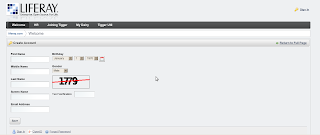
You can now easily implement a different captcha than the default captcha in Liferay. Before, the default captcha looked like this and in order to change it, you had to set some additional properties in properties-ext.properties.


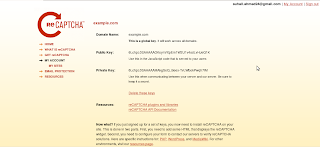
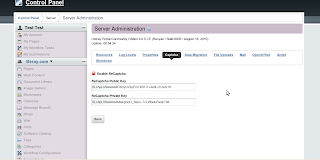
Now, you can quickly enable ReCaptcha via Control Panel-->Server Administration-->Captcha (to get a ReCaptcha key go here).
You need to login with your gmail id.
You will get this screen, copy and paste both the keys in


here as


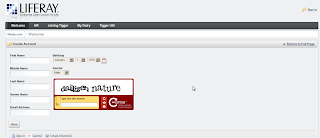
Then sign out, and go to create account. You are now using ReCaptcha!


Thanks
Suhail Ahmed 
Source(http://vforliferay.blogspot.com/2010/11/configure-or-integrate-recaptcha-in.html)

Saturday, November 5, 2011

Purposes CSS files in Liferay theme

Default theme CSS files and their purposes.

File Purpose
application.css Contains default styling having to do with components of applications. This includes the tabs, expandable trees, dialog overlays, and the results grid (that is, search container). Much of the markup for these styles is created by Liferay’s tag libraries.
base.css Contains default styling for standard HTML tags, such as paragraphs, headings,tables, and more. This file also contains styling for some Liferay-specific page elements, such as errors, warnings, tooltips, the loading animation, and more.
dockbar.css Contains default styling for the Dockbar, which floats at the top of the page when a user is logged in
custom.css A blank file that is loaded last. As a best practice, theme developers should put their custom styles here to override default styles provided by Liferay in the other theme CSS files.
forms.css Contains default styling for all form elements.
layout.css Contains default styling used by layout templates.
main.css Contains no styling, but imports the rest of the files.
navigation.css Contains default styling for the main navigation elements.
portlet.css Contains default styling for the portlet windows.

Friday, November 4, 2011

Purposes of Vm files in Liferay theme

Default theme velocity files and their purposes.

File Purpose
init_custom.vm Allows you to add custom Velocity variables.
init.vm In conjunction with VelocityVariables.java in Liferay, sets many Velocity variables that correspond to Liferay Java objects.
navigation.vm Implements the page navigation within the theme.
portal_normal.vm The overall template for all pages the theme implements. This file includes the other files.
portal_pop_up.vm The overall template for any portlets that use the Liferay pop-up custom window state.
portlet.vm The template for portlet windows within the theme.